Month: September 2020

How to remove widget from the layout in PySide

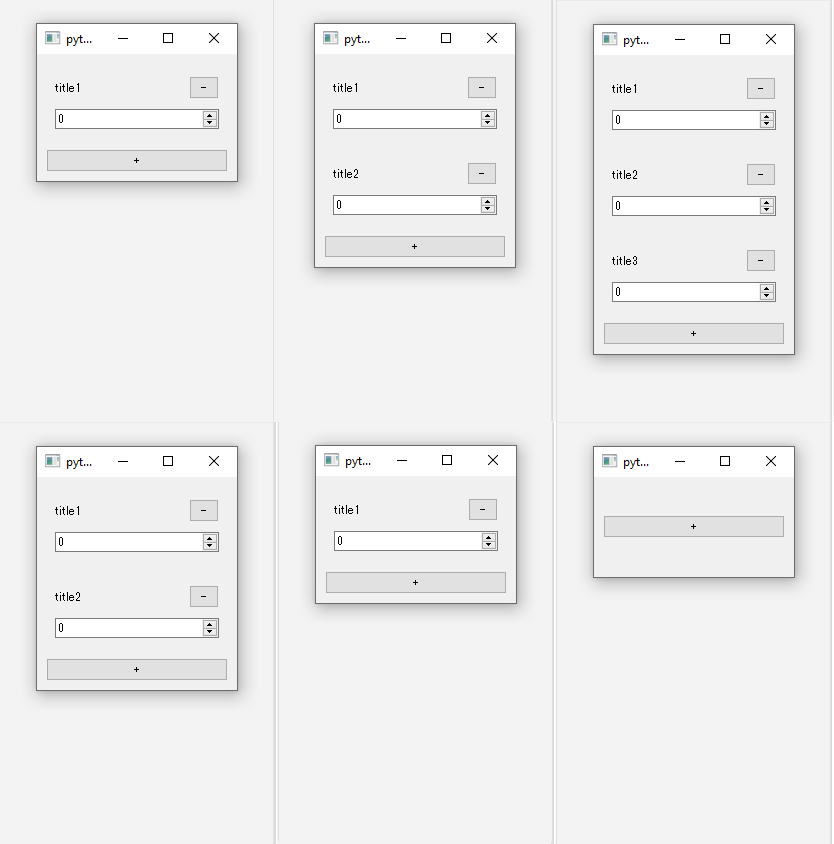
I’d like to add close button to the single widget and remove the widget from the parent layout when the close button pressed.

GOAL

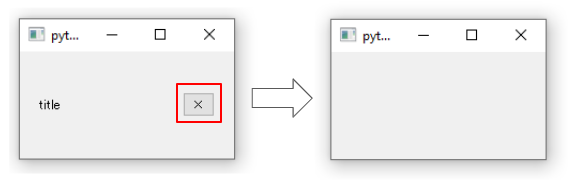
To remove single widget with close button as below.
Environment

Windows 10
Python 3.8.7
PySide2 5.15.2

Method

1. Create a widget with close button and set it in the layout

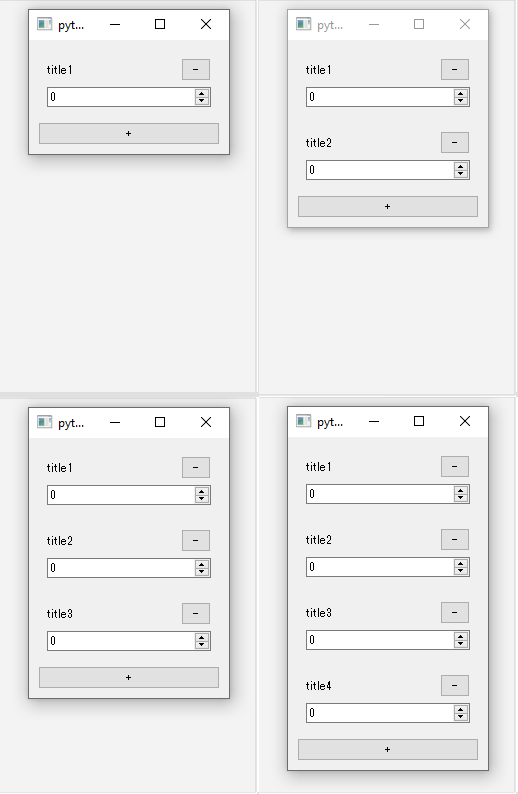
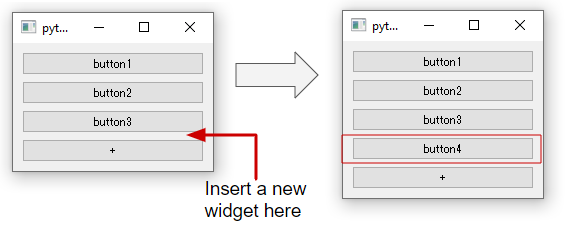
I create ItemWidget with close button and put the item and add button on the main window. Check “How To Insert Widget To The Layout Counting From The End” for detail about the implement of add button.
import sys
from PySide2.QtWidgets import *

class ItemWidget(QWidget):
    def __init__(self, id_str="", parent=None):
        super(ItemWidget, self).__init__(parent)
        self.id_str = id_str
        self._generateUI()
    def _generateUI(self):
        main_layout = QGridLayout()
        self.setLayout(main_layout)
        title = QLabel("title" + self.id_str)
        main_layout.addWidget(title, 0, 0, 1, 3)
        close_button = QPushButton("-")
        close_button.setFixedWidth(30)
        main_layout.addWidget(close_button, 0, 3, 1, 1)
        spinbox = QSpinBox()
        main_layout.addWidget(spinbox, 1, 0, 1, 4)

class MyMainWindow(QMainWindow):
    def __init__(self, parent=None):
        super(MyMainWindow, self).__init__(parent)
        self.id_num = 1
        self._generateUI()
    def _generateUI(self):
        main_widget = QWidget()
        self.main_layout = QVBoxLayout()
        main_widget.setLayout(self.main_layout)
        self.setCentralWidget(main_widget)
        item = ItemWidget(str(self.id_num))
        self.main_layout.addWidget(item)
        add_button = QPushButton("+")
        add_button.clicked.connect(self._addItem)
        self.main_layout.addWidget(add_button)
    def _addItem(self):
        self.id_num += 1
        item = ItemWidget(str(self.id_num))
        self.main_layout.insertWidget(self.main_layout.count()-1, item)

def launch():
    app = QApplication.instance()
    if not app:
        app = QApplication(sys.argv)
    widget = MyMainWindow()
    widget.show()
    app.exec_()

launch()

2. Connect close function to the signal “clicked” of the close button

Use deleteLater() to delete widget.

class ItemWidget(QWidget):
    def __init__(self, id_str="", parent=None):
        super(ItemWidget, self).__init__(parent)
        self.id_str = id_str
        self._generateUI()
    def _generateUI(self):
        main_layout = QGridLayout()
        self.setLayout(main_layout)
        title = QLabel("title" + self.id_str)
        main_layout.addWidget(title, 0, 0, 1, 3)
        close_button = QPushButton("-")
        close_button.setFixedWidth(30)
        close_button.clicked.connect(self._close_widget) # add to close the widget
        main_layout.addWidget(close_button, 0, 3, 1, 1)
        spinbox = QSpinBox()
        main_layout.addWidget(spinbox, 1, 0, 1, 4)
    def _close_widget(self):
        self.deleteLater() # main function to close widget
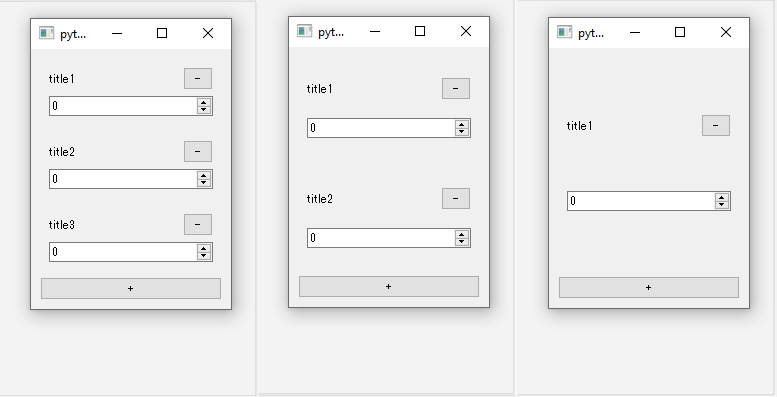
* There are many ways to remove widget from the parent layout. For example, some people use setParent(None) or something. However don’t use removeWidget() because it just removes widget without destroying it. Please refer to the discussion below.

3. Resize the parent widget when the child removed

The function deleteLater() just delete the widget without changing the size. So I changed size manually with adjustSize() as below.
Related article: How to detect the child widget destroy?

class MyMainWindow(QMainWindow):
    def __init__(self, parent=None):
        super(MyMainWindow, self).__init__(parent)
        self.id_num = 1
        self._generateUI()
    def _generateUI(self):
        main_widget = QWidget()
        self.main_layout = QVBoxLayout()
        main_widget.setLayout(self.main_layout)
        self.setCentralWidget(main_widget)
        item = ItemWidget(str(self.id_num))
        self.main_layout.addWidget(item)
        add_button = QPushButton("+")
        add_button.clicked.connect(self._addItem)
        self.main_layout.addWidget(add_button)
    def _addItem(self):
        self.id_num += 1
        item = ItemWidget(str(self.id_num))
        self.main_layout.insertWidget(self.main_layout.count()-1, item)
    def _deletedItem(self, item):
        self.id_num -= 1
        for i in range(3):
            QApplication.processEvents()
        self.adjustSize()

I don’t know why but adjustSize() doesn’t work correctly until some events are processed in the event loop. So I called QApplication.processEvents() in the for loop. Please let me know if you have any idea about this

Reference: PySide: What is the best way to resize the main window if one widget is hidden? in stackoverflow.com
How to detect the child widget destroy?

GOAL

To do some functions when the child widget is deleted.

Environment

Windows 10
Python 3.8.7
PySide2 5.15.2

Method

Connect the function to child’s signal “destroyed” as below.

import sys
from PySide2.QtWidgets import *

class ItemWidget(QWidget):
    def __init__(self, id_str="", parent=None):
        super(ItemWidget, self).__init__(parent)
        self._generateUI()
    def _generateUI(self):
        main_layout = QGridLayout()
        self.setLayout(main_layout)
        title = QLabel("title")
        main_layout.addWidget(title, 0, 0, 1, 3)
        close_button = QPushButton("×")
        close_button.setFixedWidth(30)
        close_button.clicked.connect(self._close_widget)
        main_layout.addWidget(close_button, 0, 3, 1, 1)
    def _close_widget(self):
        self.deleteLater()

class MyMainWindow(QMainWindow):
    def __init__(self, parent=None):
        super(MyMainWindow, self).__init__(parent)
        self._generateUI()
    def _generateUI(self):
        main_widget = QWidget()
        self.main_layout = QVBoxLayout()
        main_widget.setLayout(self.main_layout)
        self.setCentralWidget(main_widget)
        item = ItemWidget(str(self.id_num))
        item.destroyed.connect(self._deletedItemFunc) # connect the function to execute
        self.main_layout.addWidget(item)
    def _deletedItemFunc(self):
        print("deleted") # when the item deleted, the message "deleted" is displayed

def launch():
    app = QApplication.instance()
    if not app:
        app = QApplication(sys.argv)
    widget = MyMainWindow()
    widget.show()
    app.exec_()

launch()

When click × button, the child widget deleted and the message “deleted” is displayed.

Appendix

If the child is removed from the parent layout. You can add function at the same time.

self.main_layout.removeWIdget(item)
self._deletedItemFunc()

How to fit the widget to the parent layout in PySide2

GOAL

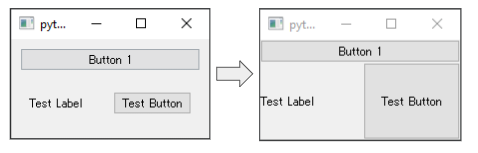
To fit the sizes of the children widgets to the layout of the parent. In other words, to remove the space around widgets from the layout.

Environment

Windows 10
Python 3.8.7
PySide2 5.15.2

Method

There are 2 steps to delete margin space from the layout.

  1. Set the margin of the layout 0
  2. Set the spacing of the layout 0
(more…)

How to fit the selected color to the cell in QTreeWidget

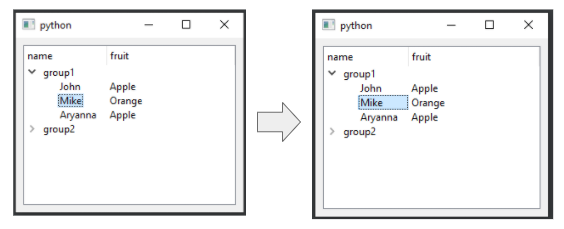
The length of selected color depends on the length of the string in QTreeWidget of PySide2. How can I fit the length of the cell?

GOAL

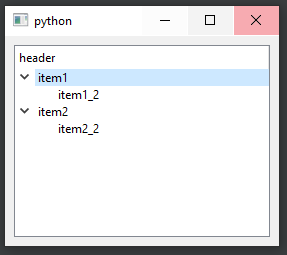
To fill the color to fit the size of the cell when the item is selected. (See the article “How to select one column of QTreeWidgetItem in PySide2” to generate an tree widget that allows users to select each item.)

Environment

Windows 10
Python 3.8.7
PySide2 5.15.2

Method

Set show-decoration-selected of qss(QStyleSheet) that can be used for QTreeWidget, QTreeView, QListWidget and QListView.

Controls whether selections in a QListView cover the entire row or just the extent of the text.

from Qt Style Sheets Reference

Use setStyleSheet to set qss to the widget as below.

self.tree_widget.setStyleSheet('QTreeView { show-decoration-selected: 1;}')

See the official documentation “Qt Style Sheets” for details about qss.

[Tips]How to access each n-th item of lists

Though the following is one of the ways to access items of multiple list, an error “index out of range” will occur when the lengths of the lists are different. How can I solve it?

list1 = ["A", "B", "C", "D"]
list2 = [1, 2, 3, 4]
list3 = ["Apple", "Orange", "Banana", "Peach"]

for i in range(len(list1)):
    print(list1[i], list2[i], list3[i])

The output is as below.

A 1 Apple
B 2 Orange
C 3 Banana
D 4 Peach

GOAL

To access each n-th item of multiple lists in one for loop.

(more…)

How to change the default size of PySide window

GOAL

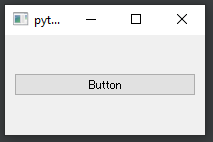
To change the default size that is initial size of the window in PySide2.

Environment

Windows 10
Python 3.8.7
PySide2 5.15.2

Method

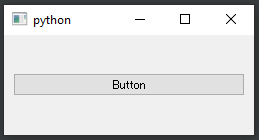
I create a simple window as below.

import sys
from PySide2.QtWidgets import *

class MyMainWindow(QMainWindow):
    def __init__(self, parent=None):
        super(MyMainWindow, self).__init__(parent)
        self._generateUI()

    def _generateUI(self):
        main_widget = QWidget()
        main_layout = QVBoxLayout()
        main_widget.setLayout(main_layout)
        self.setCentralWidget(main_widget)
        button = QPushButton("Button")
        main_layout.addWidget(button)

def launch():
    app = QApplication.instance()
    if not app:
        app = QApplication(sys.argv)
    widget = MyMainWindow()
    widget.show()
    app.exec_()

launch()

How to change the variable size

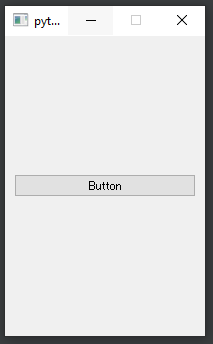
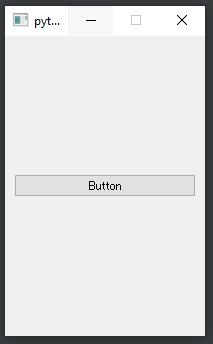
Use resize() function at first to change the default size.

from PySide2 import QtCore

class MyMainWindow(QMainWindow):
    def __init__(self, parent=None):
        super(MyMainWindow, self).__init__(parent)
        self._generateUI()
        self.resize(200, 300)

How to change the variable width and height

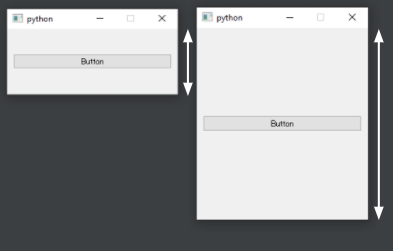
You can change only width or height of the window using height() or width() to get current size.

def launch():
    app = QApplication.instance()
    if not app:
        app = QApplication(sys.argv)
    widget = MyMainWindow()
    widget.show()
    widget.resize(250, widget.height())

Because the window size is adjusted to the contents of the window, resize after showing the window.

class MyMainWindow(QMainWindow):
    def __init__(self, parent=None):
        super(MyMainWindow, self).__init__(parent)
        self._generateUI()
        print(self.width(), self.height())
        # output => 640 480

def launch():
    app = QApplication.instance()
    if not app:
        app = QApplication(sys.argv)
    widget = MyMainWindow()
    widget.show()
    print(widget.width(), widget.height())
    # output => 200 100

Appendix

How to change the fixed size

Use setFixedSize() to fix the size of window. (You can’t resize the window after using this function.)

class MyMainWindow(QMainWindow):
    def __init__(self, parent=None):
        super(MyMainWindow, self).__init__(parent)
        self.setFixedSize(200, 300)
        self._generateUI()

How to change the fixed height and width.

Use setFixedWidth() and setFixedHeight(). If you use setFixedWidth(), you can still change the height of the window.

class MyMainWindow(QMainWindow):
    def __init__(self, parent=None):
        super(MyMainWindow, self).__init__(parent)
        self.setFixedWidth(250)
        self._generateUI()

How to use QTreeWidget() in PySide2

GOAL

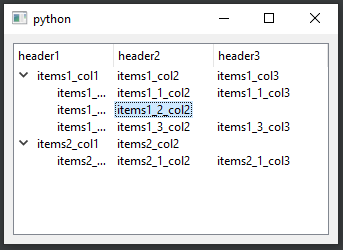
To create tree widget in my GUI program with PySide2.

Environment

Windows 10
Python 3.8.7
PySide2 5.15.2

Related Classes

Reference: PySide.QtGui / Qt Widgets C++ Classes

Examples

I created sample window and 4 types of tree widgets and 2 functions. The below is the template.

import sys
from PySide2.QtWidgets import *

class MyMainWindow(QMainWindow):
    def __init__(self, parent=None):
        super(MyMainWindow, self).__init__(parent)
        self._generateUI()
        #self._simple_tree_widget()
        self._tree_widget1()
        
    def _generateUI(self):
        main_widget = QWidget()
        main_layout = QVBoxLayout()
        main_widget.setLayout(main_layout)
        self.setCentralWidget(main_widget)
        self.tree_widget = QTreeWidget()
        main_layout.addWidget(self.tree_widget)
    def _tree_widget1(self):
        ...
    def _tree_widget2(self):
        ...

def launch():
    app = QApplication.instance()
    if not app:
        app = QApplication(sys.argv)
    widget = MyMainWindow()
    widget.show()
    app.exec_()

launch()

Example 1. Simple tree widget

(more…)

[error]CreateProcess error=2, The system cannot find the file specified in PyCharm

Error Detail

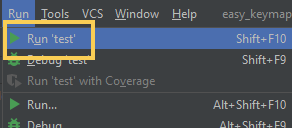
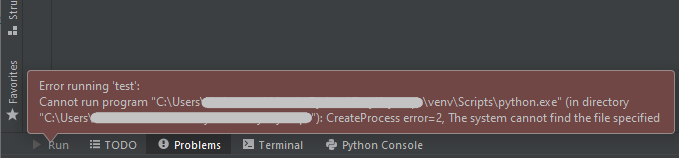
When I try to run python in PyCharm. The error occurred as below. What is venv\Scripts\python.exe?

Error running 'easy_keymaps_ui': Cannot run program "C:\Users\<USER_NAME>\source\test\venv\Scripts\python.exe" (in directory "C:\Users\<USER_NAME>\source\test"): CreateProcess error=2, The system cannot find the file specified

Environment

Windows 10
PyCharm 2020.3
Python 3.8

Cause

The python specified to use as interpreter in PyCharm cannot be found. In my case, the specified python is python that is bundled to the deleted virtual env of PyCharm project.
Check “Configure a virtual environment” for details about virtual env of PyCharm.

Solution

Change the python to use

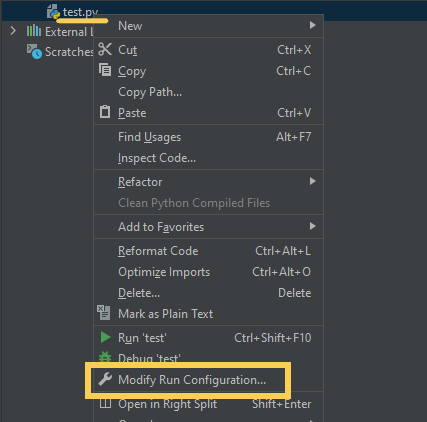
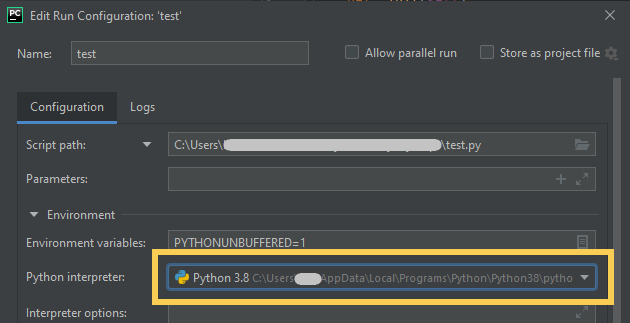
Right click the program to run. And click “Modify Run Configuratuib…”

Select valid interpreter and click ”OK”.

How to remove and add python interpreters to the project

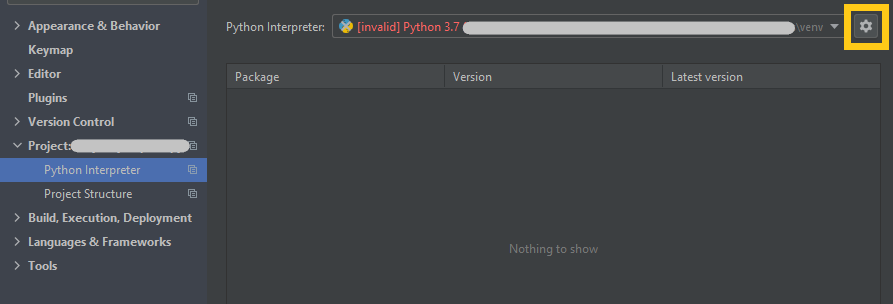
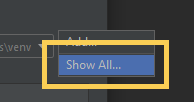
Open “File > Settings > Python Interpreter”. Click the gear icon and click “Show All” button.

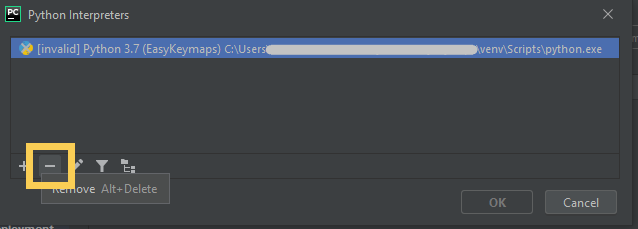
Click “-” button to delete invalid Python.

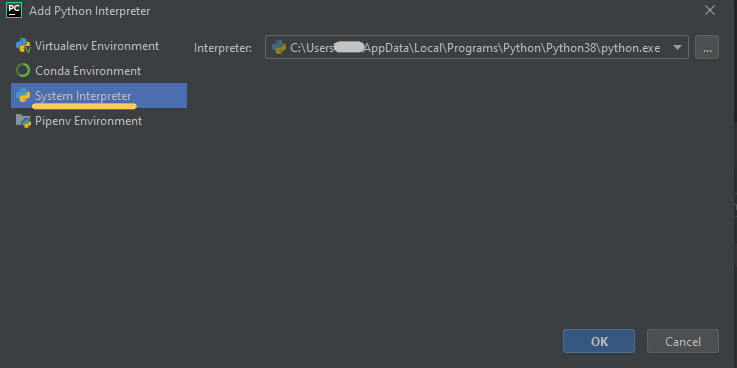
And click “+” button to add new valid python to use to run python program. I selected my local system python.